 english
 usa // language two
 france // language three
+ 888 999 0000
// contact numberAgrikon
Agriculture Farm HTML5 Template
Created : 15/12/2020By : ninetheme
Email : ninetheme@gmail.com
Thank you for purchasing Agrikon
- Agriculture Farm HTML5 Template If you have any questions that are beyond the
scope of this help file, please feel free to email, via my user page contact
form or put a ticket at Support Center .
Thank you so much!
Template Features
- Clean & Simple Design
- Advance Bootstrap 3 Framework
- Revolution Slider
- SASS (SCSS)
- HTML5 & CSS3
- BEM Structure (Block, Element, methodology)
- Modular Structure
- Chart js
- Google Map
- Fully Responsive Design
- All files are well commented
- Crossbrowser Compatible with IE10+, Firefox, Safari, Opera, Chrome
- Extensive Documentation
Gulp Start
Follow the steps below:
- Download the latest template source from ThemeForest.
- Extract Agrikon downloaded zip file. Extracted zip file will have 2 folders.
- Agrikon => main source files
- Documentation => guide lines
- We'll start of the process by installing Gulp onto your computer.
Gulp requires you to have Node.js and Node Package Manager (NPM) installed on
your system, so if you haven’t gotten
them yet,
then go to Node.js’s website and download the installer. - Once you’re done installing Node.js and NPM, you can install Gulp by typing the following command in the command line:
- Start with command prompt if you use windows or start with terminal or iterm if you use mac:
- sudo npm install gulp-cli -g
- # Note: Widnows users do not require the `sudo`keyword
- cd /Agrikon-directory
- npm install gulp [Note: we used gulp 4 version after run this command gulp 4 version will be installed into your computer.]
- # Note: don't use sudo keyword mac users and windows users now
- Now gulp 4 version will be installed after run this command [npm install gulp]
- You are now good... Start adding into your Agrikon's main style.scss file your code will be automatically compile in the style.css file.
- Please see the gulpfile.js file you will get all specific
- Now go to your main file. and You will also see a new folder node_modules that was created when you ran the command. npm install gulp
- how to install sass and use
// install sass
npm install -g sass
// you may need to use SUDO eg. sudo npm install -g sass
// go to the project root in the terminal using the CD command.
// in the root of your project directory run the following commands.
1. To compile sass use the following command sass sass/style.scss:sass/style.css
2. To watch for changes in SASS file and to compile automatically use the following command sass --watch sass/style.scss:sass/style.css
To stop watching files, use CTRL + C on Windows or Command + C on Mac OS
or go to sass's website - if you have any confusion, issue then feel free contact us
HTML Structure
The html template uses Latest Bootstrap v3.3.7 with valid HTML5 tags. This theme is a responisve layout with 4 column Support column. All of the information in content area is nested within a class and comes with predefined classes.
Basic Grid HTML
For a simple two column layout, create a .container and add the appropriate number of .col-md* columns.
Given this example, we have .col-md-4 and .col-md-8, making for 12 total columns and a complete row.
......
Nesting Columns
To nest your content with the default grid, add a new .container and set of .col-md* columns within an existing .col-md* column. Nested rows should include a set of columns that add up to the number of columns of its parent.
Level 1 columnLevel 2Level 2Level 2 column
CSS and SCSS Files Structure
There are three main files are in this theme. The first one bootstrap.min.css, second one is style.scss which for this template and third one is responsive.scss to control responsive layouts.
If you would like to edit a specific section of the site, then go to sass folder and open style.scss file, and then scroll down until you find the appropriate style that needs to be edited.
NOTE: if you want to edit into style.scss file, first you will have to install sass on your computer, then if you edit anything into SCSS file, your code will be loaded automatically compile into style.css file. style.css file is into sass folder.
These are the css files that are loaded into templates in top of document.
Fonts
By default, the template loads this font from Google Web Font Services, you can change the font with the one that suits you best.
  @import url('https://fonts.googleapis.com/css?family=Montserrat:100,100i,200,200i,300,300i,400,400i,500,500i,600,600i,700,700i,800,800i,900,900i');
                    @font-face {
  font-family: "CoveredByYourGrace";
  font-weight: normal;
  font-style: normal;
  src: url("../fonts/CoveredByYourGrace.ttf");
  src: url("../fonts/CoveredByYourGrace.ttf") format("embedded-opentype"),
  url("../fonts/CoveredByYourGrace.ttf") format("woff2"),
  url("../fonts/CoveredByYourGrace.ttf") format("woff"),
  url("../fonts/CoveredByYourGrace.ttf") format("truetype"),
  url("../fonts/CoveredByYourGrace.ttf#CODEBold") format("svg");
}
Jquery and javascript
This theme imports three types of Javascript files.
- jQuery
- Custom scripts (main.js)
- Some plugins
- jQuery is a Javascript library that greatly reduces the amount of code that you must write.
- Most of the animation in this site is carried out from the customs scripts. There are a few functions worth looking over.
In addition to the custom scripts, I have implemented few "tried and true" plugins to create the effects. This plugin is packed, so you won't need to manually edit anything in the file. The only necessary thing to know is how to call the method
These are the JS files that are loaded into templates in end of the Body Section.
 //map api
     key put your own api key in this src
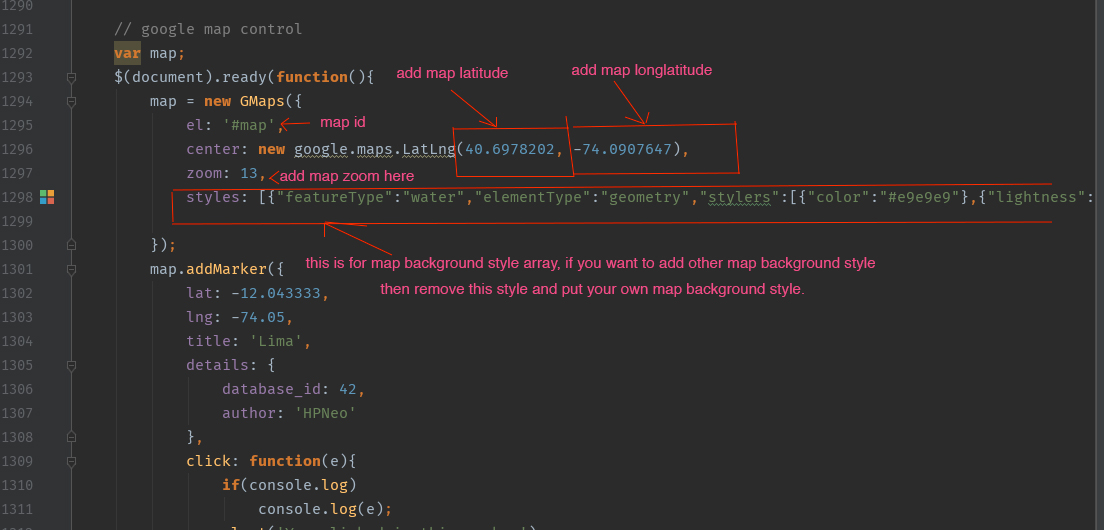
Google Map Settings
For editing default contact map you have to edit it's data-attribute. See the screenshot below for more clarification
Slider Settings
we use slider revolution for all three homepages,
if you want to edit content, transition,
and image, then see the example on the below,
you can change the all content like these example.
Open the document and edit with your own content like these example.
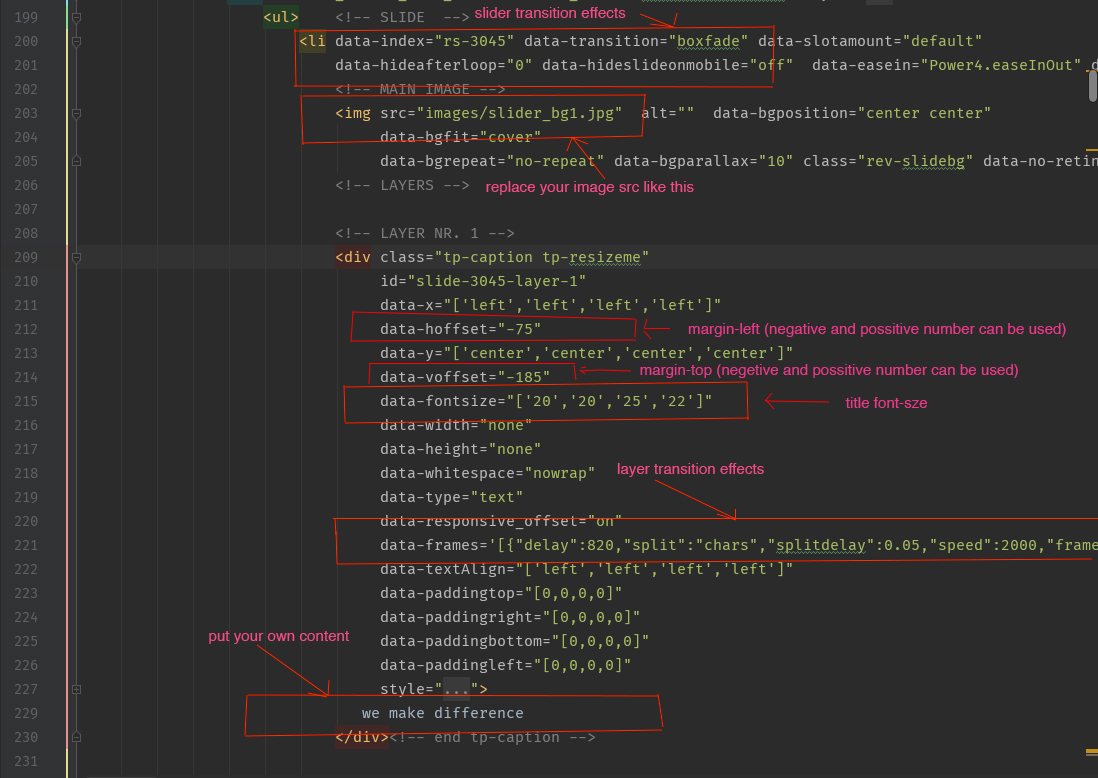
NOTE: you wil change the other slider content like these example.
Tutorial
LOGO AND FAVICON
Lets start updating the template. Open index.html file and follow the steps.
Most of the updates are same for all pages. So will explain once here.

Replace "images/favicon.png", "images/logo.png" with your logo and favicon image url source or website name .
NAVMENU AND LANGUAGE
This is the basic HTML structure.
Add your own menu item to that ul li item. and if you want to add dropdown menu just make a nesting ul li with class of main__dropdown-menu
FOOTER COPYRIGHT
replace "© copyright 2020 by ninetheme.com" with the copyright info.
Sources and Credits
Fonts Used int the template are google fonts, you can find theme on Google Fonts API
Fonts Used are :
SASS (SCSS) files:
_mixins.scss (in sass Folder)
_plugins.scss (in sass Folder)
_responsive.scss (in sass Folder)
style.scss (in sass Folder)
style.css (in sass Folder)
Sliders Used Are :
Plugins Used Are :
Magnific Popup (can be located in js folder)
waypoints.min.js (can be located in js folder)
Counter up (can be located in js folder)
Gmap.js (can be located in js folder)
FontAwesome Icons (can be located in css folder)
Fontello Icons (can be located in css folder)
Every Code is properly commented for Editing Ease.Support
Once again, thank you so much for purchasing this theme. As I said at the beginning, I'd be glad to help you if you have any questions relating to this theme. No guarantees, but I'll do my best to assist. If you have any queries, please feel free to contact us at Support Center.
Email Us at : ninetheme@gmail.com